> ## Documentation Index
> Fetch the complete documentation index at: https://docs.tryjunoapp.com/llms.txt
> Use this file to discover all available pages before exploring further.
# What Juno sends first
> The messages Juno sends without you asking, and how to choose which ones.
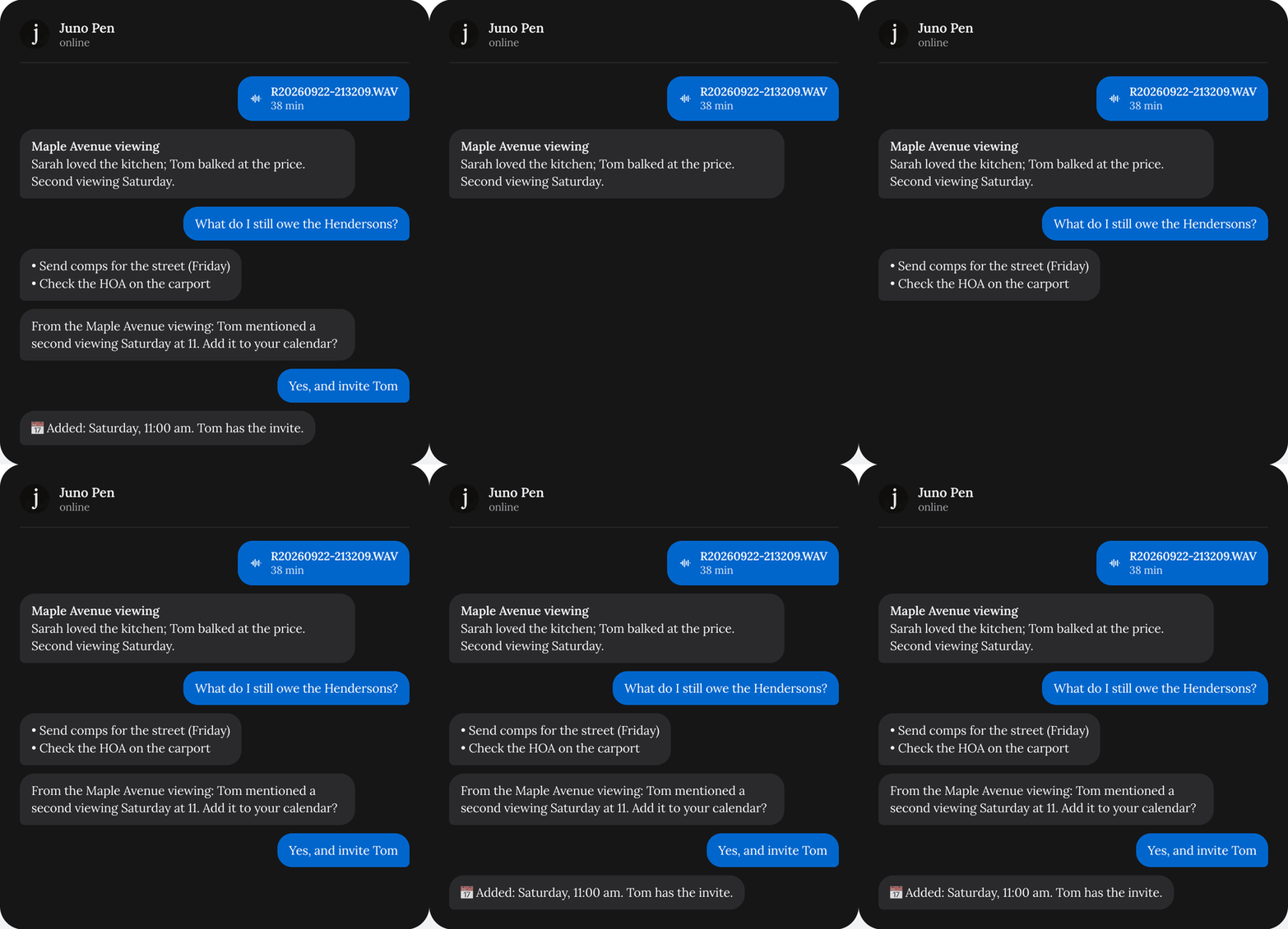
Juno can text you first when there's something useful to say.
| Message | When |
| - | - |
| **After an upload** | Right after a recording is ready: one to three offers, like adding a meeting to your calendar. |
| **Brief before a meeting** | From 18:00 the evening before a meeting, or the morning of. |
| **Follow-up nudges** | At 9:00, the to-dos due that day, in one message. |
| **Morning brief** | Between 7:30 and 11:00, on days you have meetings or to-dos due. |
| **Notion page offers** | When Juno can turn something into a Notion page. |
 ## Choose which messages you get
The **Messages from Juno** card shows up once your phone is linked.
**Let Juno message me first** turns them all on or off. Below it, switch each kind on or off.
You can also do it by chat. Send **stop morning brief** or **stop reminders** to turn off just one kind.
See [Quiet hours and STOP](/whatsapp/quiet-hours-and-stop) for limits.
This documentation is built and hosted on [Mintlify](https://mintlify.com), a developer documentation platform.
## Choose which messages you get
The **Messages from Juno** card shows up once your phone is linked.
**Let Juno message me first** turns them all on or off. Below it, switch each kind on or off.
You can also do it by chat. Send **stop morning brief** or **stop reminders** to turn off just one kind.
See [Quiet hours and STOP](/whatsapp/quiet-hours-and-stop) for limits.
This documentation is built and hosted on [Mintlify](https://mintlify.com), a developer documentation platform.